
File a Claim


Unable to File a Claim?
If you attempt to file a new claim in the MyUI+ application but the system advises you that there is already an account on file using your information, and you haven’t filed a claim within the past five years, a fraudster may have used your information to create a fraudulent claim for unemployment benefits.
If you are unable to file a new claim in MyUI+, please contact our customer support center at 303-318-9000 or toll-free at 1-800-388-5515.
Verify Your Identity for Your Unemployment Claim
Any time you start an unemployment claim, reopen a claim, or need to make certain changes to your claim info, we will ask you to verify your identity. You may be asked to verify your identity multiple times, depending on your claim. Please complete each identity verification request we send you and do it as soon as possible to keep your claim moving. All claimants will need to verify identity with ID.me. New claimants who file by phone are required to verify identity with USPS but will not be able to manage their claim through MyUI+.
For more information, visit:
ID.Me Verification United States Post Office In-person Option
File a Claim
If you received $2,500 or more in wages on a W-2 from any employer where taxes were withheld during the last 18 months, you are likely eligible to file a claim for unemployment benefits.
Before you file a claim, gather your income-related information, such as pay stubs. Be prepared to provide information about work you have performed in the last 18 months, including the name and address of the business, dates you worked, and rate of pay. When you are ready to file a claim, go to MyUI+.
Manage Your Claim
If you have filed a claim in the state of Colorado since 2015, you're still considered a returning claimant. You will need to complete your registration using the email address you provided to us.
Upload Documents
Occasionally, CDLE needs additional information from you, or you may wish to upload additional documentation related to your claim. Any request for documentation from CDLE should come with instructions on how to upload or fax documentation to the division.
To upload documents:
- Log in to MyUI+
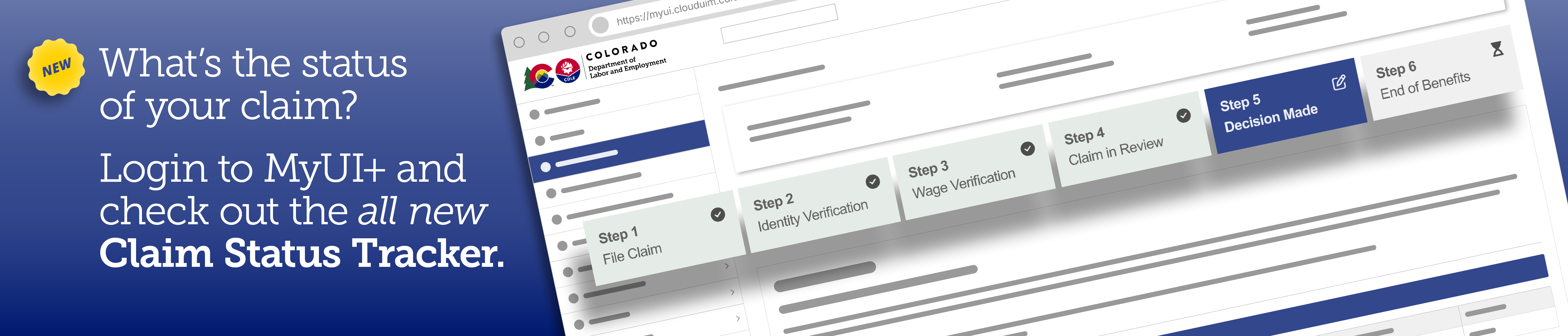
- If you have actions to complete, they should be listed on your claim status tracker.
- Go to “View and maintain Account Information” on the left side menu.
- Click Issues and determinations
- Scroll down to see your issue identification number that you need to submit documents for.
- Hint: your claim status tracker will tell you what needs to be done.
- Click the issue identification number to open the details for that issue.
- If you do not see a pending issue, please fax additional documents to 303-318-9014. If you fax documentation, please use the barcoded pages you received.
- Select the check box next to “Check here if you would like to provide any additional documentation that is relevant for this issue.”
- Click Next
- You will be taken to a screen that will ask you to press Next again.
- On the Provide Additional Documentation screen where you should select the appropriate bubble. To upload a document, you should click “upload document,” and click next.
- You do not need a cover sheet if you are uploading documents digitally.
- Select “Choose File.” This will open your file explorer where you can select the appropriate document and add it to your claim.
- Once you have added the document you wish to upload, it will show up next to the “choose file” button. Click next.
- Once you have uploaded the document, the system will give you a confirmation. We recommend that you screenshot or save a PDF file of this confirmation page.
- Click next
- When you click next, the system will bring you back to your “Determination and Issue Summary Page.”