How to File Wages Manually
Employers must report wages to the Division of Unemployment Insurance (UI) each quarter, if determined to be liable. Wage detail information can be entered manually and submitted in MyUI Employer+.
| Wage Reports are Due Quarterly | |
|---|---|
| April 30 | Quarter 1 reports are due for wages paid in January, February, March. |
| July 31 | Quarter 2 reports are due for wages paid in April, May, June. |
| October 31 | Quarter 3 reports are due for wages paid in July, August, September. |
| January 31 | Quarter 4 reports are due for wages paid in October, November, December. |
Step 1. Access Employment and Wage Detail Information
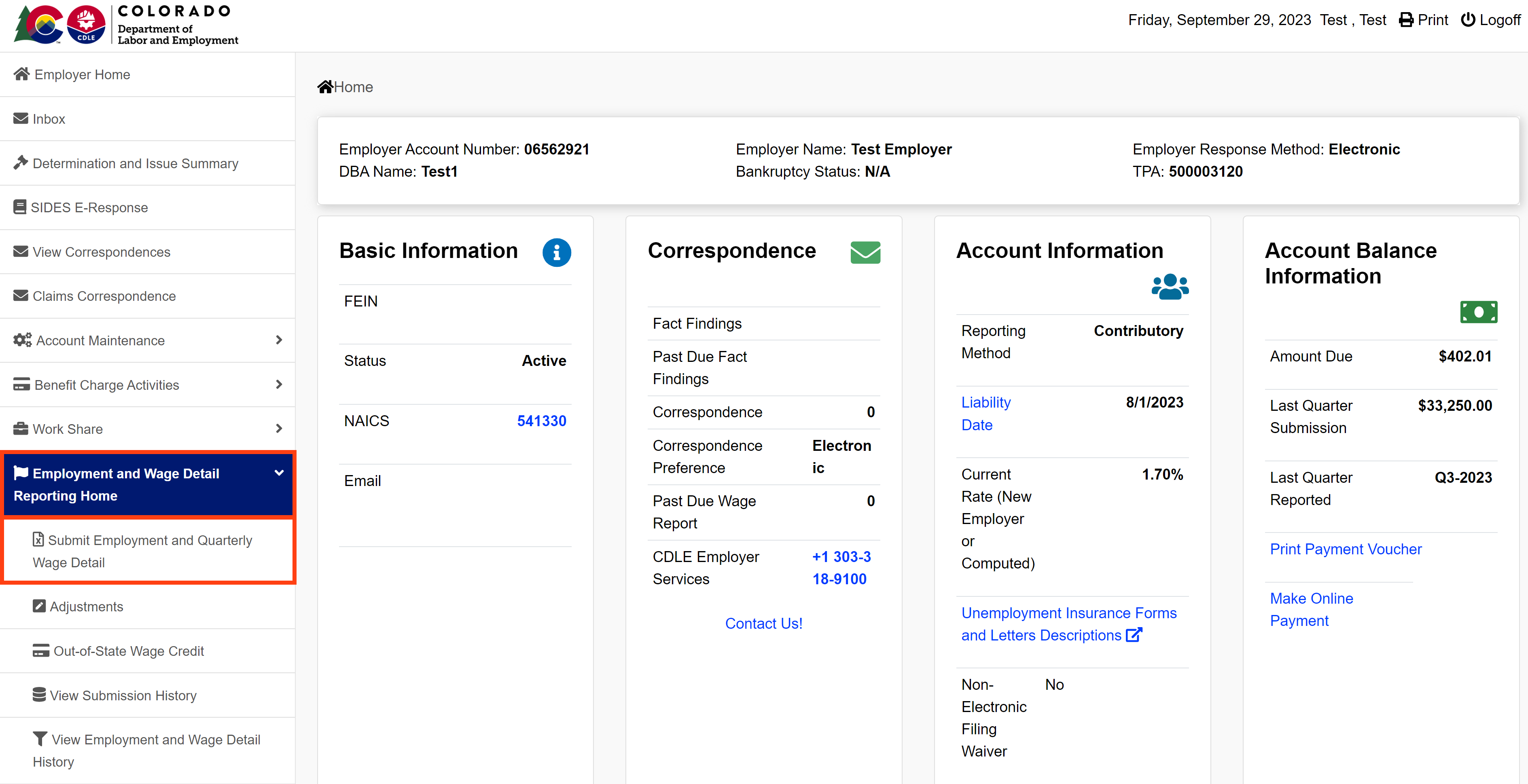
- Login to MyUI Employer+ and access your Employer Home page.
- Click the “Employment and Wage Detail Reporting Home” tab in the left-hand navigation menu.
- Click the “Submit Employment and Quarterly Wage Detail” subtab.
Step 2. Select the Reporting Period
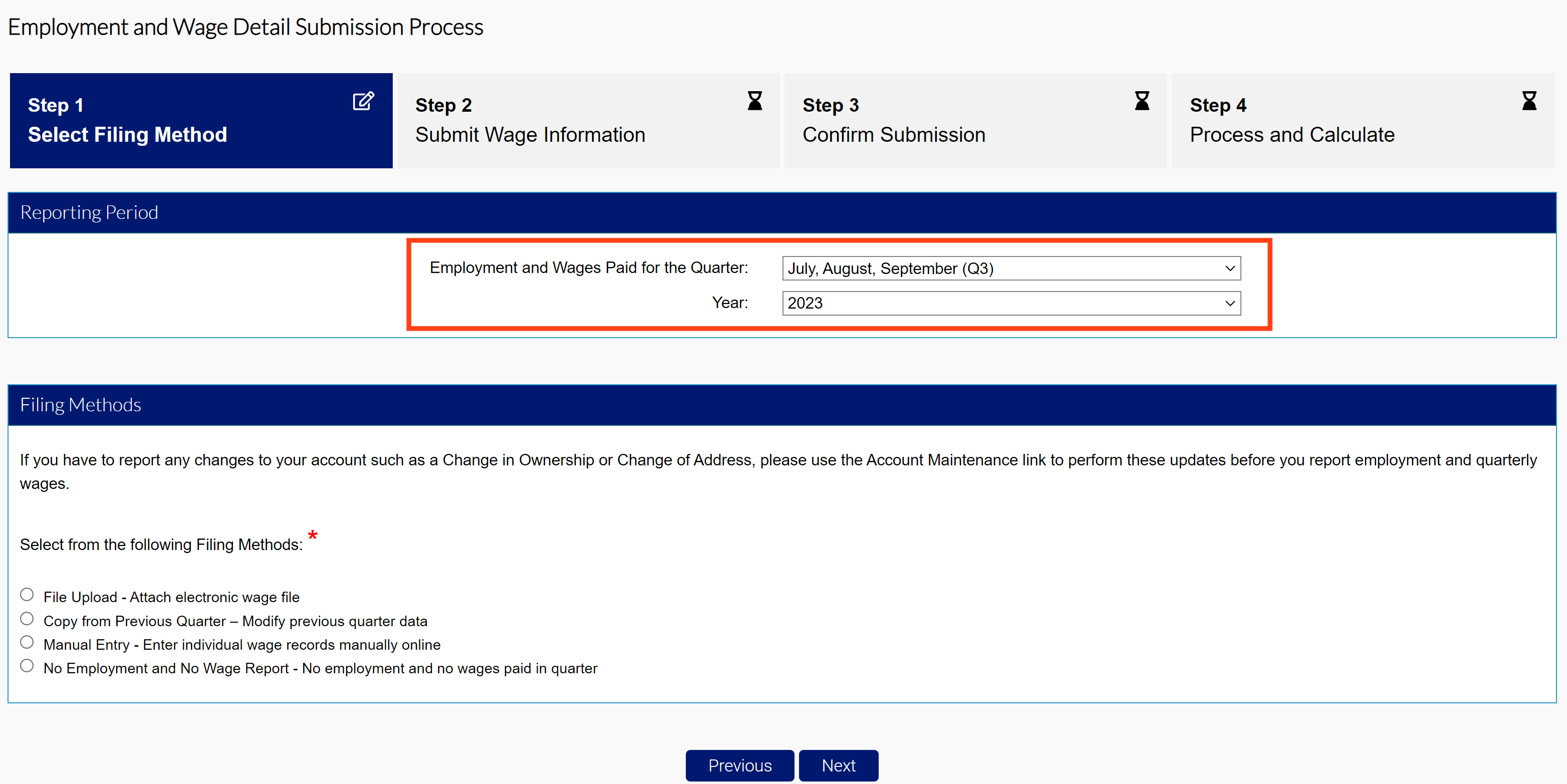
- Select the quarter and year of the wage report you are filing using the provided dropdowns.
MyUI Employer+ will only allow wages submissions for the current quarter, or previous quarters the employer is liable for.
Step 3. Enter Wage Details Manually
Enter wage detail information line-by-line manually in MyUI Employer+.
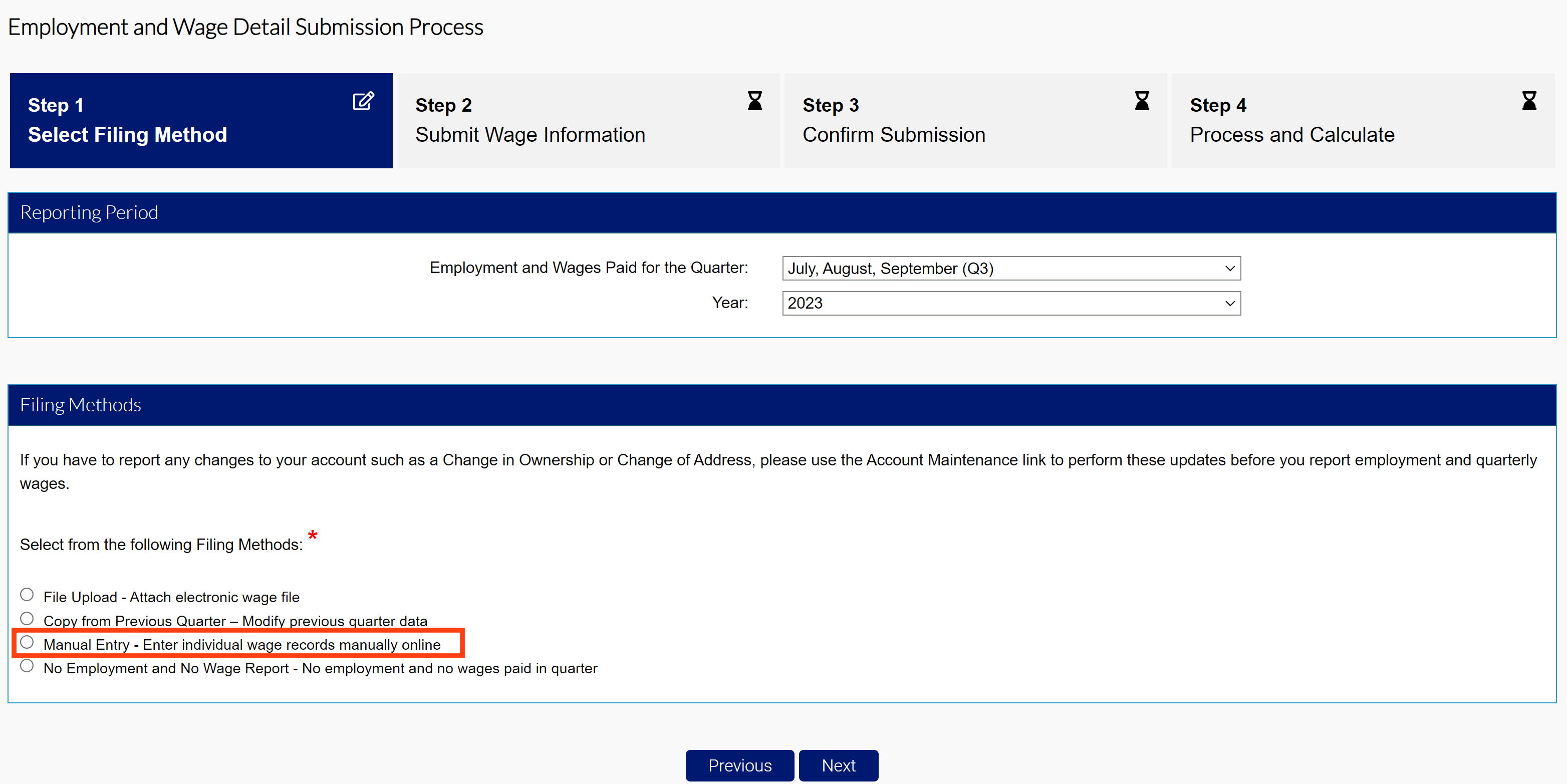
- Click the “Manual Entry” radio button in the Filing Methods screen.
- Enter the employment and wage information in the fields provided:
- SSN
- Last Name
- First Name
- Middle Initial (MI)
- Unit #
- UI Gross Wages
- Ownership information
- Employment months
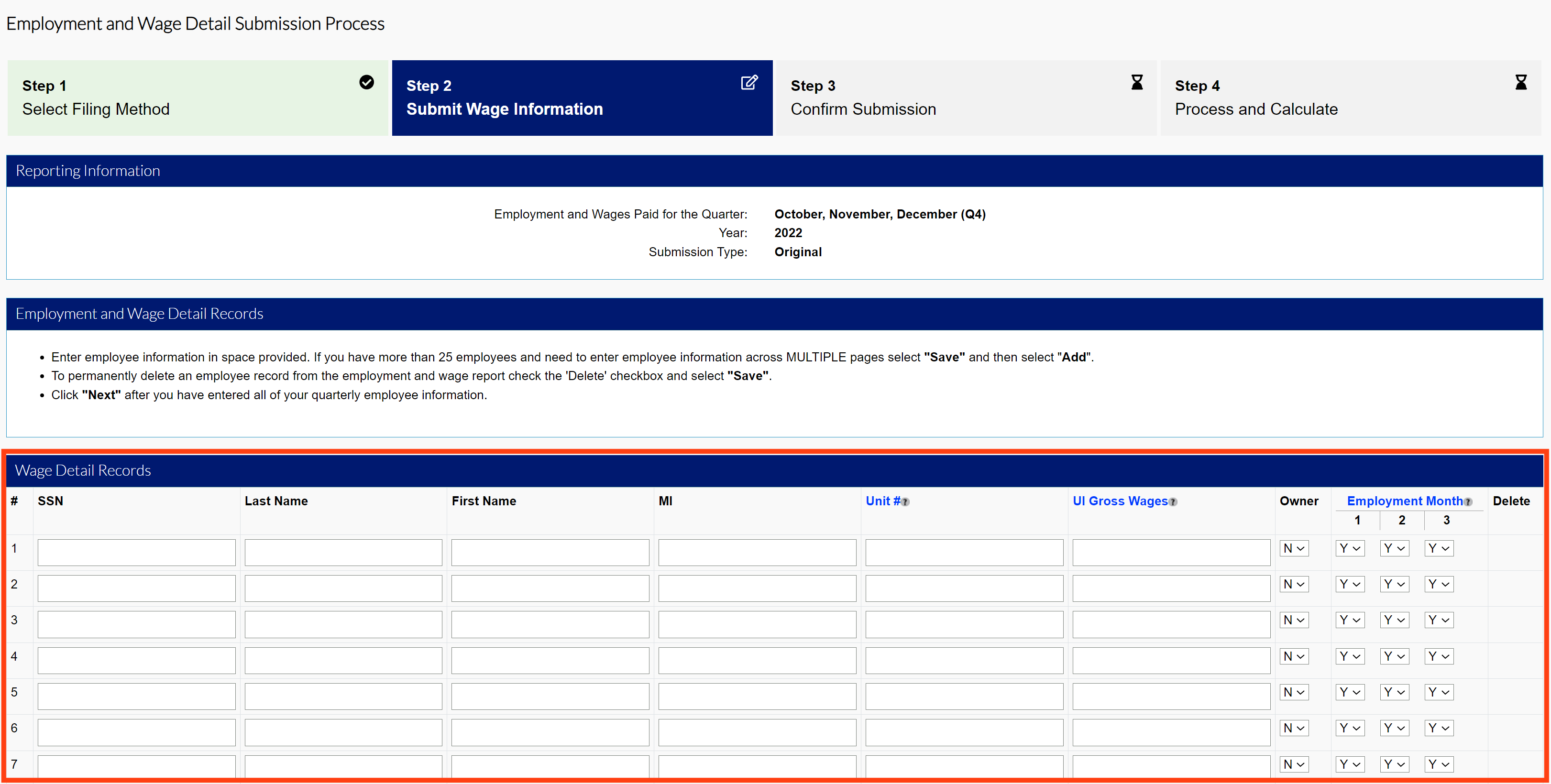
- Click “Save” after your entry.
- Review all Wage Detail Records you provided.
- Click “Next”.
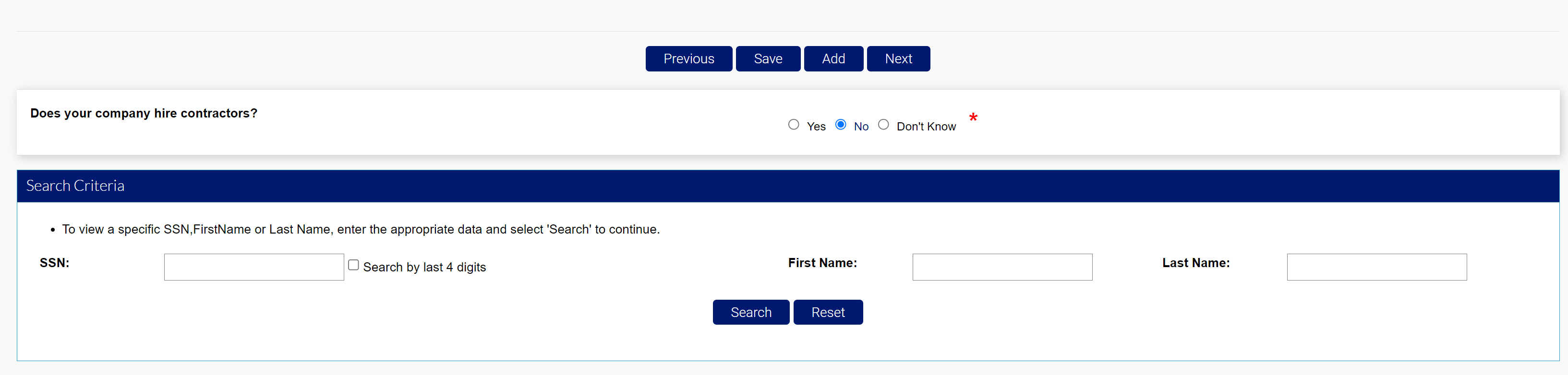
- View the report summary.
- Click ”Next” to continue to the Quarterly Calculations screen.
Step 4. Submit Your Wage Report
The Quarterly Calculations screen includes the breakdown of wages, premiums, penalties and interest, and the total amount due.
- Click the certification box.
- Click “Submit” to submit your wage report.
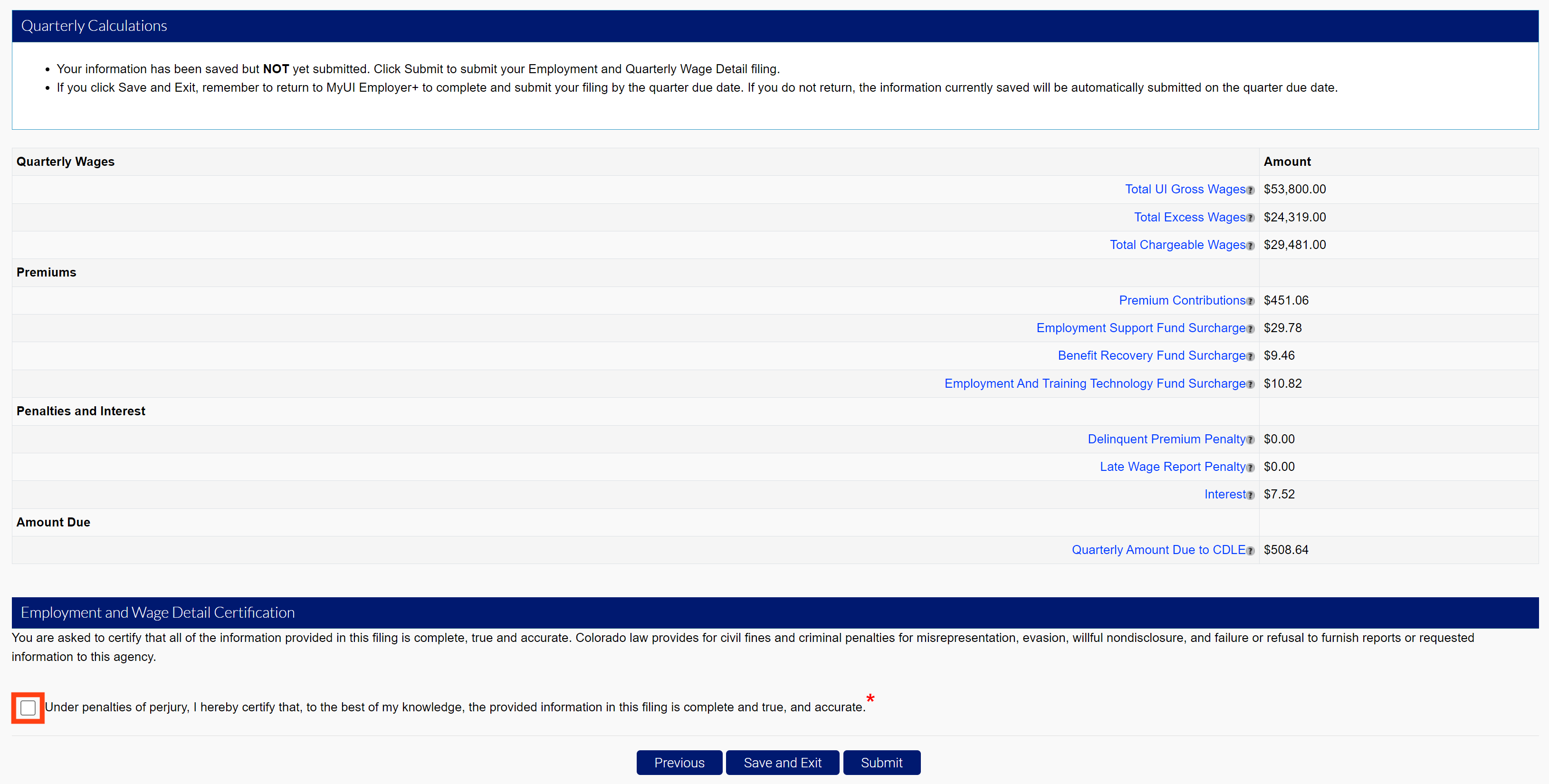
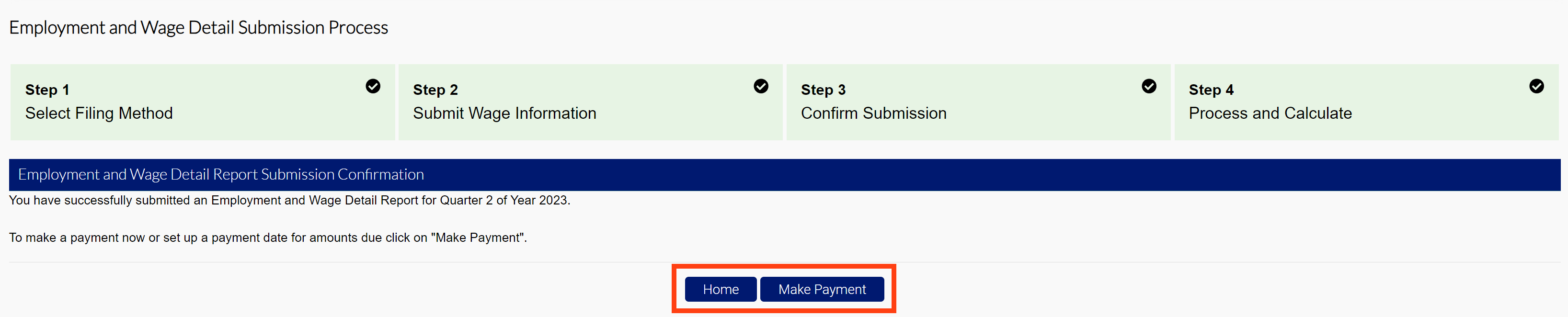
- Click “Make Payment” to proceed to the premium payment screen.
- Click “Home” to return to the Employer Home page.