How to Upload a Wage File
Employers must report wages To the Division of Unemployment Insurance (UI) each quarter, if determined to be liable. You can upload a Wage files can be uploaded in MyUI Employer+ to expedite the reporting process.
| Wage Reports are Due Quarterly | |
|---|---|
| April 30 | Quarter 1 reports are due for wages paid in January, February, March. |
| July 31 | Quarter 2 reports are due for wages paid in April, May, June. |
| October 31 | Quarter 3 reports are due for wages paid in July, August, September. |
| January 31 | Quarter 4 reports are due for wages paid in October, November, December. |
Step 1. Access Employment and Wage Detail Information
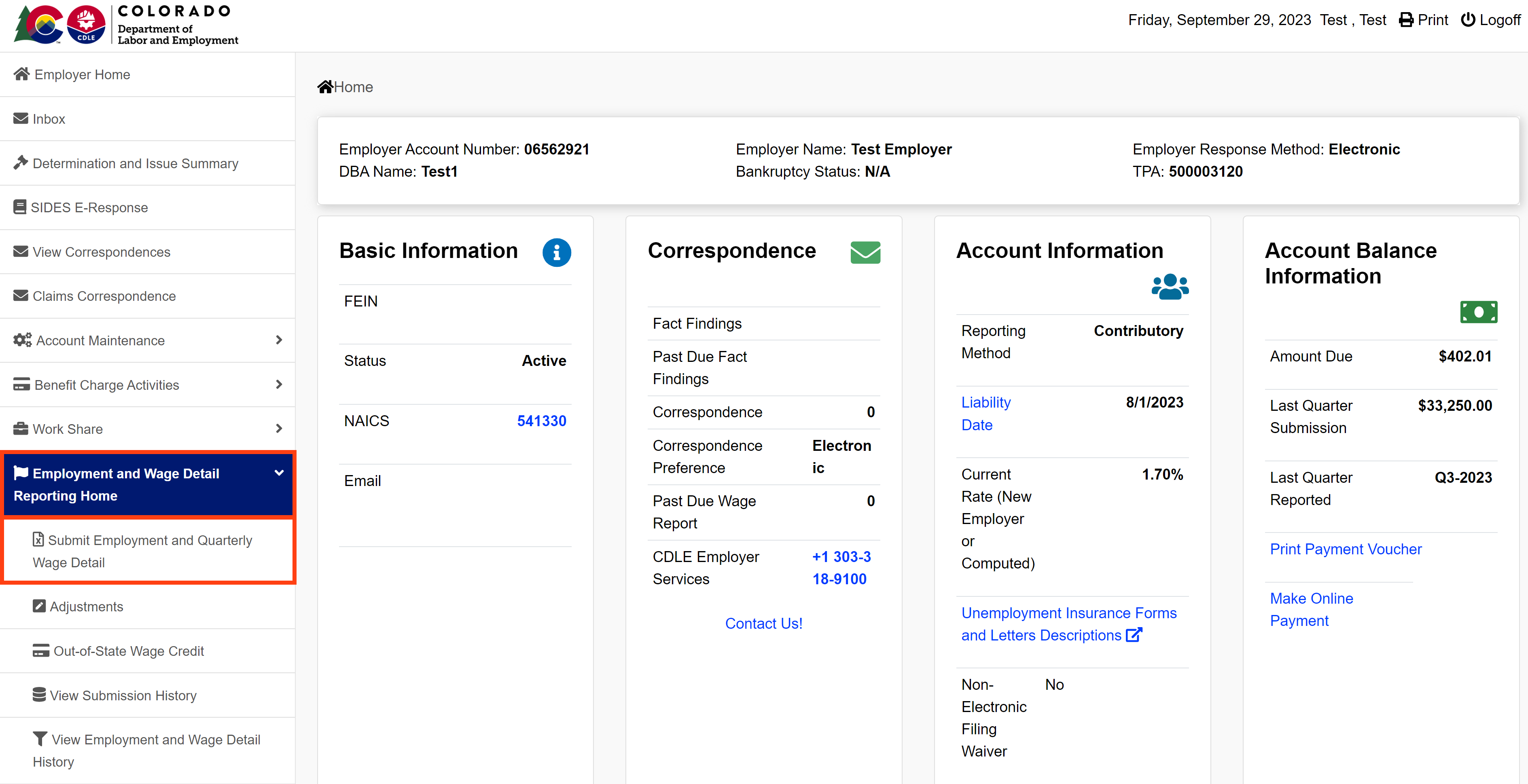
- Login to MyUI Employer+ and access your Employer Home page.
- Click the “Employment and Wage Detail Reporting Home” tab in the left-hand navigation menu.
- Click the “Submit Employment and Quarterly Wage Detail” subtab.
Step 2. Select the Reporting Period
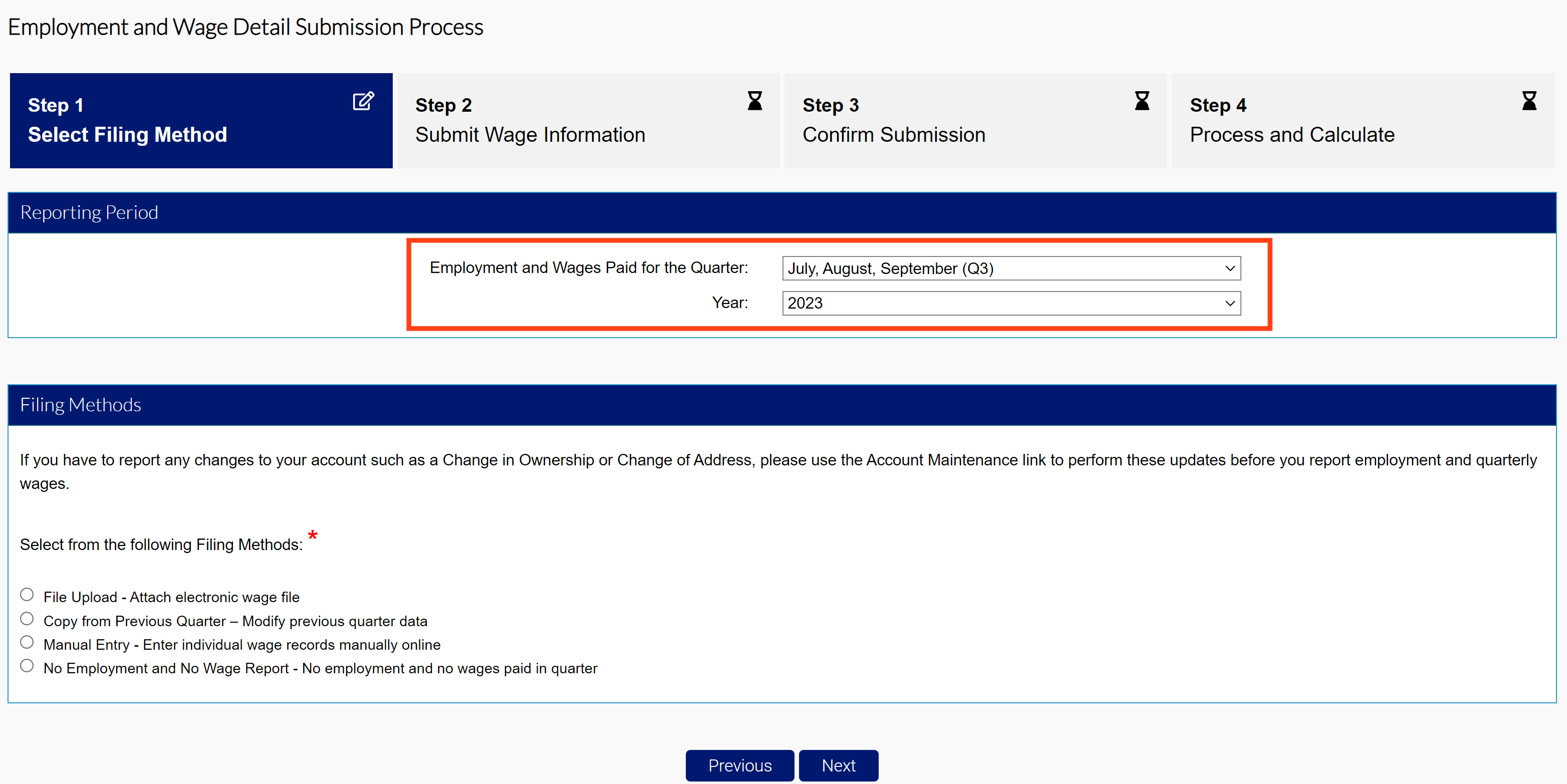
- Select the quarter and year of the wage report you are filing using the provided dropdowns.
MyUI Employer+ will only allow wage submissions for the current quarter, or previous quarters the employer liable for.
Step 3. Upload Your Wage File
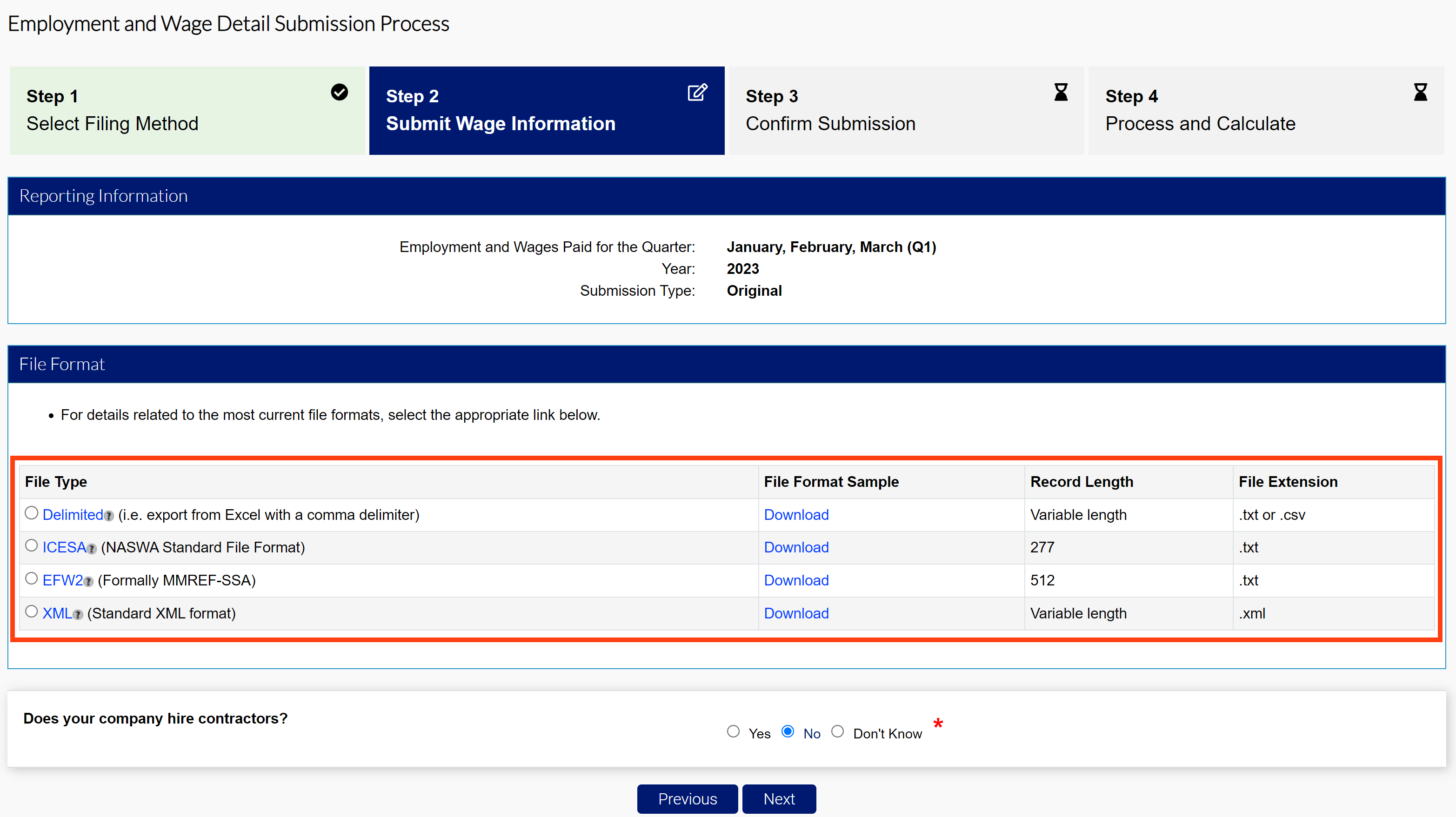
MyUI Employer+ will accept four different file types:
- Delimited
.txt or .csv file that can be exported from Excel. The length of this file will vary and be accepted up to 20MB. - ICESA
.txt file in the NASWA standard file format. This will be 277 characters long. - EFW2
.txt file formally known as MMREF-SSA. This will be 512 characters long. - XML
.xml file that will vary in length and be accepted up to 20MB.
Click the “Download” link next to the related file to download and view a sample document PDF.
- Select the File Type.
- Indicate whether or not your company hires contractors.
- Click “Next”.
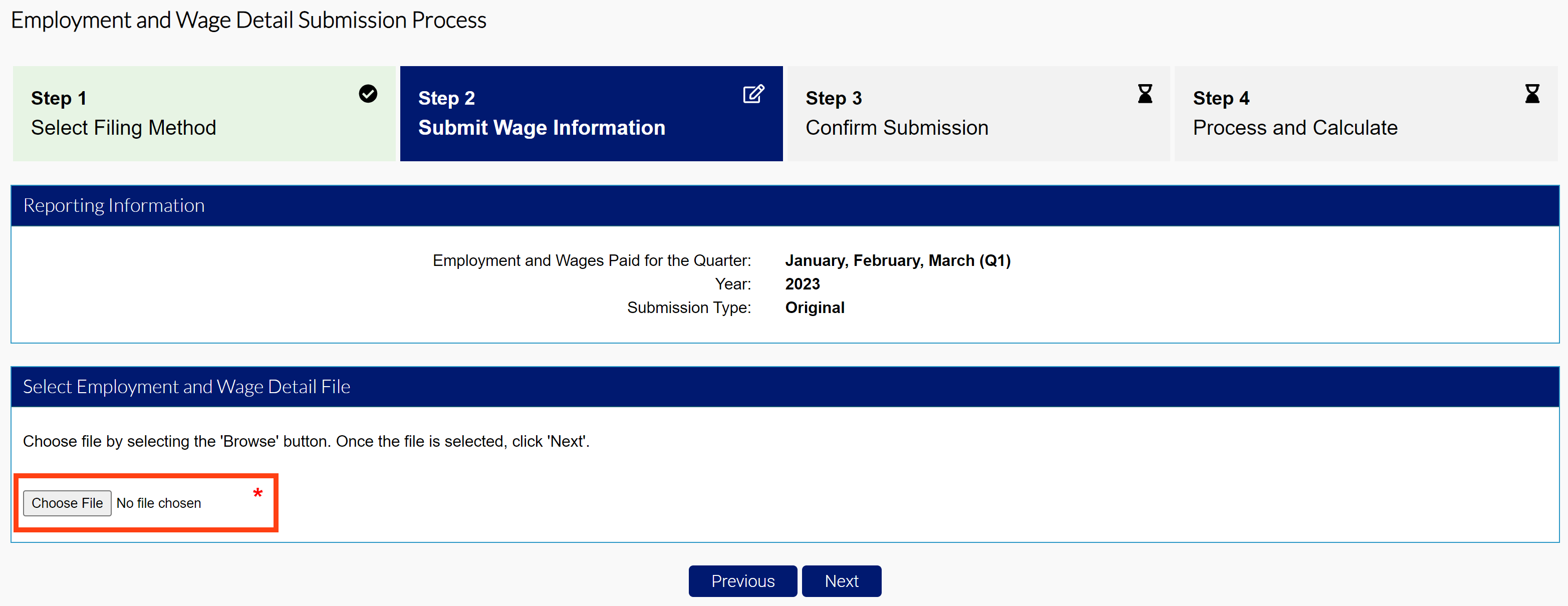
- Click the Choose File button and select the file you want to upload from your computer. Remember to upload the same file type you selected in the previous screen.
- Click “Next” to upload the file.
The File Preview section displays any errors in your file, if applicable. Error messages will provide a description of the error and what you can do to correct them. Fatal errors must be fixed before the system will accept your submission.
If there are no fatal errors in your file, the first 10 records of your submission will appear in the File Preview screen.
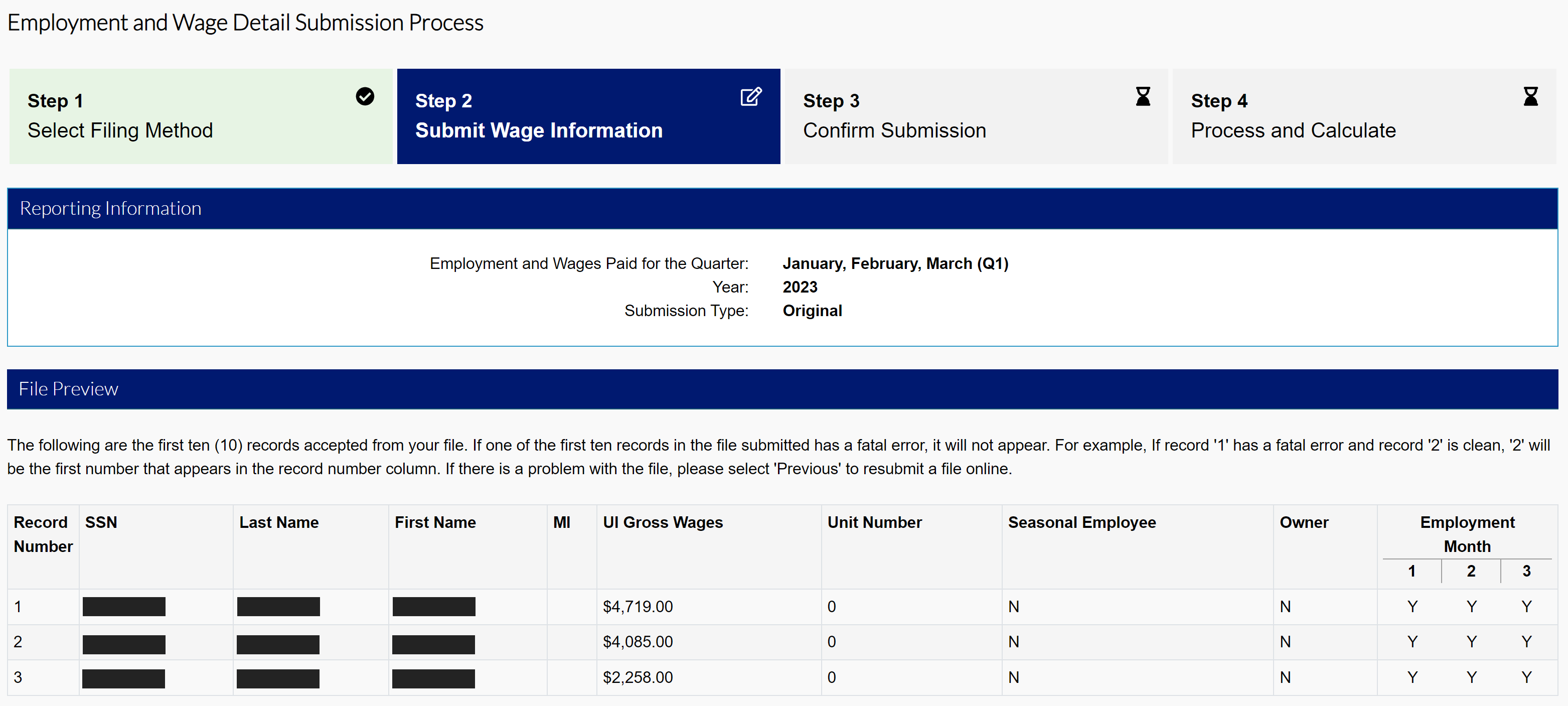
- Review your submission.
- Click “Next”, or save your progress by clicking the “Save and Exit” button.
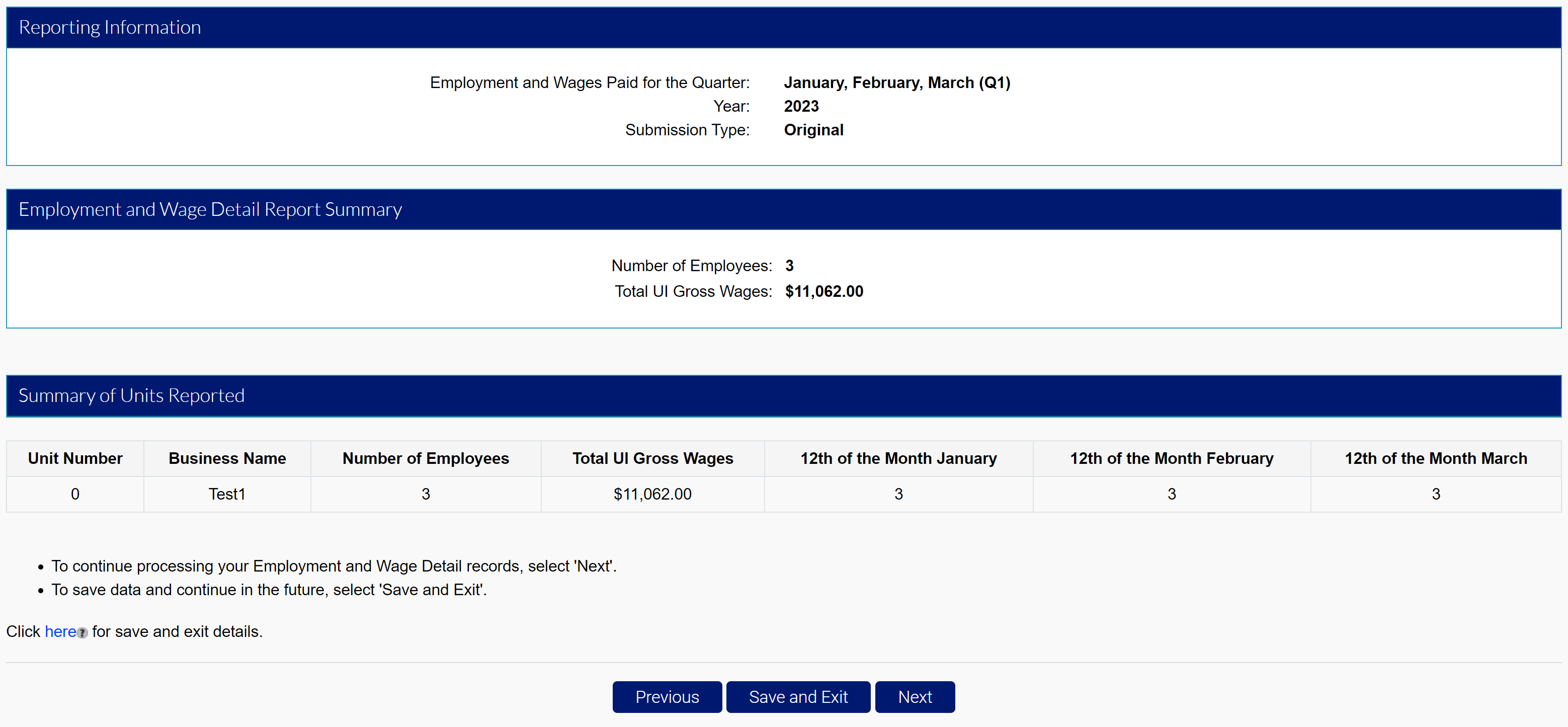
Most files are available in the system immediately after submission, though others may require overnight processing. Files must be submitted, with no errors, by the quarterly due date.
Step 4. Submit Your Wage Report
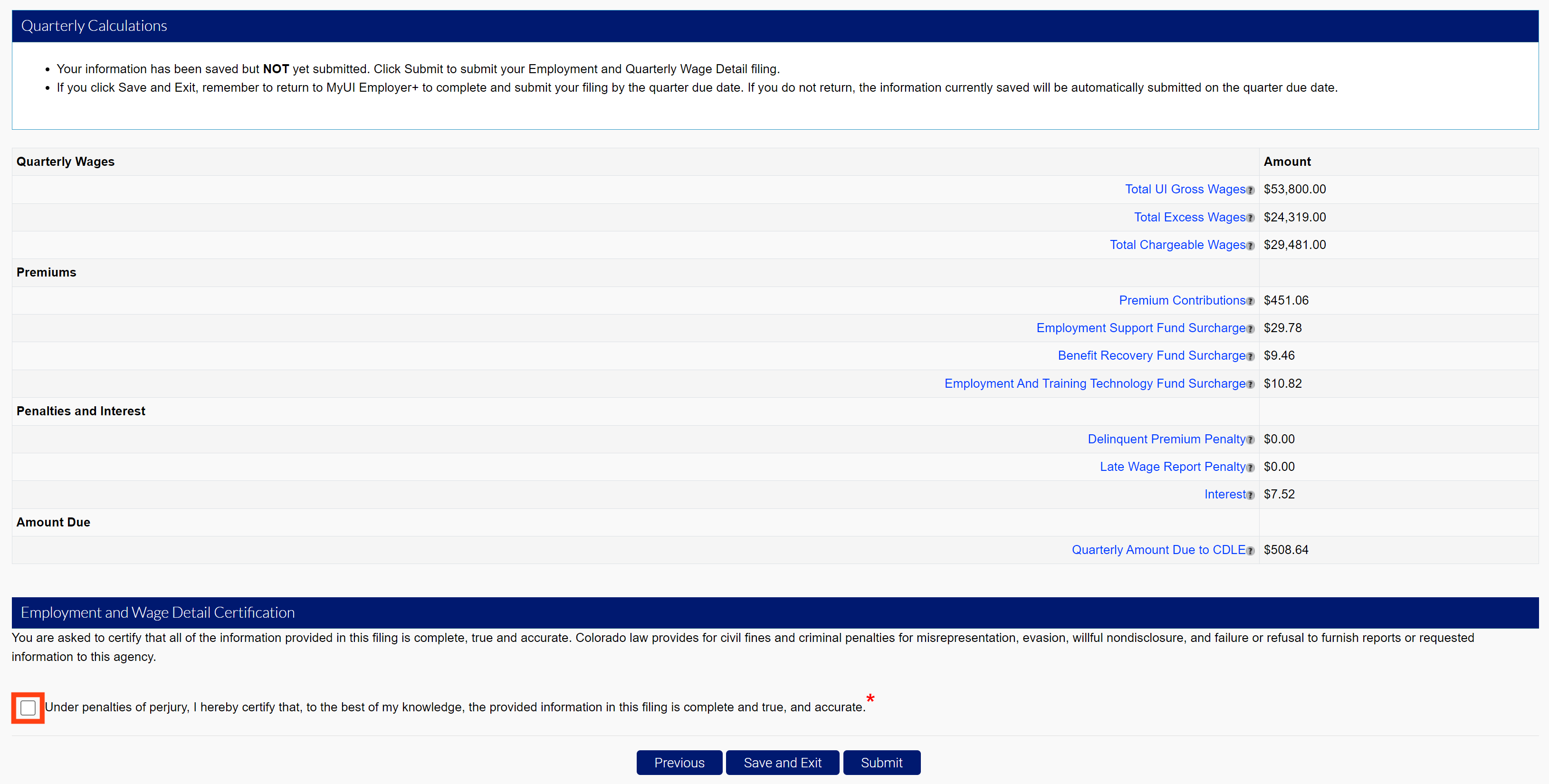
The Quarterly Calculations screen includes the breakdown of wages, premiums, penalties and interest, and the total amount due.
- Click the certification box.
- Click “Submit” to submit your wage report.
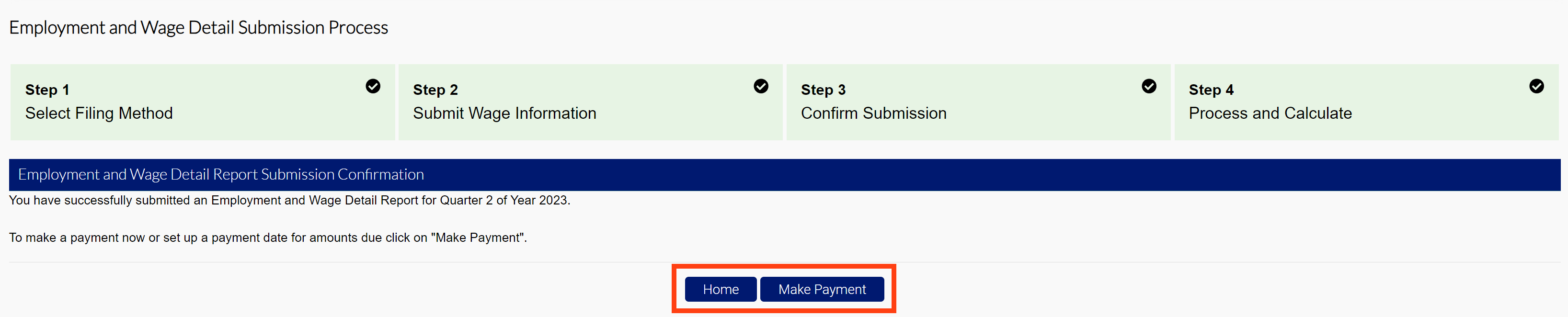
- Click “Make Payment” to proceed to the premium payment screen.
- Click “Home” to return to the Employer Home page.